Best USB-C Dock for Remote Work: Complete Setup Guide 2026
A quality USB-C dock transforms your remote work setup from cluttered chaos to streamlined productivity. The best USB-C dock for remote work serves as your central hub, connecting multiple monitors, peripherals, and charging your laptop through a single cable. With remote work becoming the norm, choosing the right docking station can make the difference between a frustrating workday and seamless productivity.
Key Takeaways:
- USB-C docks consolidate multiple connections into one cable for cleaner setups
- Look for at least 60W power delivery and dual monitor support for optimal productivity
- Consider port variety: USB-A, HDMI, Ethernet, and SD card slots based on your needs
- Premium models offer better build quality and longer warranties for daily use
- Cable management solutions enhance the professional appearance of your workspace
What Makes the Best USB-C Dock for Remote Work?
The ideal remote work USB-C dock balances functionality, reliability, and value. Unlike basic hubs, professional docking stations provide sufficient power delivery to charge your laptop while supporting multiple high-resolution displays and various peripherals simultaneously.
Key features to prioritize include:
- Power Delivery: Minimum 60W for most laptops, 100W for power-hungry models
- Display Support: Dual 4K at 60Hz or single 8K capability
- Port Variety: Multiple USB-A, USB-C, HDMI, and Ethernet connections
- Build Quality: Aluminum construction for heat dissipation and durability
- Cable Length: Sufficient reach for flexible desk positioning
The Baseus USB-C Docking Station 6-in-1 Pro Hub exemplifies these qualities, offering comprehensive connectivity in a compact form factor that suits modern remote work environments.
Essential Ports and Connectivity for Remote Workers
Your port requirements depend on your specific workflow, but certain connections prove universally valuable for remote work productivity.
Display Connectivity
Dual monitor setups increase productivity by up to 42% according to productivity studies. Look for docks supporting:
- HDMI 2.1: 4K at 60Hz or 8K at 30Hz
- DisplayPort 1.4: Higher bandwidth for multiple displays
- USB-C with DisplayPort Alt Mode: Direct connection to USB-C monitors
Data Transfer Ports
Fast data transfer keeps your workflow smooth:
- USB 3.2 Gen 2: 10Gbps for external drives and backup solutions
- USB-A ports: Legacy device compatibility
- SD/microSD slots: Direct camera and mobile device access
Network and Audio
Stable connections matter for video calls and file transfers:
- Gigabit Ethernet: Wired internet stability
- 3.5mm audio jack: Headphone and microphone connectivity
USB-C Dock Setup Guide for Maximum Productivity
Proper setup maximizes your dock's potential and creates a professional workspace that enhances focus and efficiency.
- Position Your Dock Strategically: Place it within easy cable reach but away from high-traffic areas. Consider a monitor stand riser to create vertical space for dock placement.
- Connect Power First: Always plug in the power adapter before connecting your laptop to ensure adequate charging capacity.
- Configure Display Settings: Set up extended or mirrored displays through your operating system's display preferences. Test different arrangements for optimal workflow.
- Organize Peripheral Connections: Connect your ergonomic wireless mouse receiver and other USB devices to maintain a clean workspace.
- Implement Cable Management: Use a telescopic under-desk cable management tray to route cables cleanly and prevent tangling.
Optimizing Your Workspace Layout
Your dock enables a cleaner, more professional setup. Position frequently used ports facing forward for easy access. Route power and display cables behind your desk using cable management solutions. This creates a workspace that impresses during video calls and reduces distractions.
Performance Considerations and Compatibility
Not all USB-C docks perform equally across different devices and operating systems. Understanding compatibility ensures smooth operation from day one.
Operating System Support
Modern docks support multiple platforms, but feature availability varies:
- Windows: Full feature support with proper drivers
- macOS: Plug-and-play compatibility, some limitations with multiple displays on M1/M2 Macs
- Chrome OS: Basic functionality, limited display support
- Linux: Variable support depending on distribution
Power Delivery Compatibility
Match your dock's power output to your laptop's requirements. Insufficient power delivery causes slow charging or battery drain during intensive tasks. Check your laptop's power adapter wattage and choose a dock with equal or higher capacity.
Thermal Management
Quality docks include thermal protection to prevent overheating during extended use. Aluminum construction provides better heat dissipation than plastic alternatives, ensuring stable performance during long work sessions.
Troubleshooting Common Remote Work Dock Issues
Even the best USB-C dock for remote work occasionally encounters problems. Understanding common issues and solutions keeps your productivity flowing.
Display Connection Problems
If external monitors aren't detected:
- Verify cable connections and try different ports
- Update graphics drivers and dock firmware
- Check display resolution and refresh rate compatibility
- Test with different cables to isolate hardware issues
Charging and Power Issues
For charging problems:
- Ensure the dock's power adapter is properly connected
- Verify your laptop supports USB-C power delivery
- Check if the dock provides sufficient wattage for your device
- Try connecting the laptop directly to test USB-C port functionality
Peripheral Connectivity
When devices aren't recognized:
- Test peripherals on different USB ports
- Update device drivers and operating system
- Check USB power management settings
- Verify the dock supports your specific device requirements
Building Your Complete Remote Work Setup
Your USB-C dock serves as the foundation for a comprehensive remote work environment. Complement it with quality peripherals that enhance productivity and comfort.
Essential additions include a high-quality 4K streaming webcam for crystal-clear video calls, and proper lighting like an LED architect desk lamp to ensure professional appearance during virtual meetings.
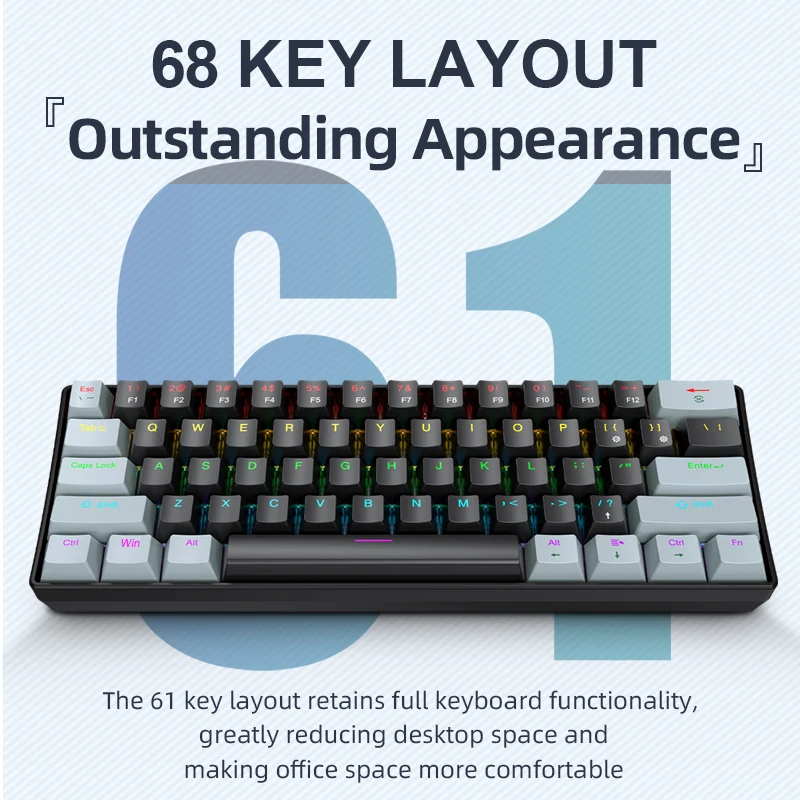
For input devices, consider upgrading to a mechanical keyboard such as the AULA F75 Max Mechanical Keyboard for improved typing comfort during long work sessions.
Complete your setup with proper cable organization using a premium retractable under-desk cable tray to maintain a professional appearance and reduce workspace clutter.
Making Your Investment Count
Choosing the best USB-C dock for remote work requires balancing current needs with future expansion possibilities. Quality docks represent a long-term investment in your productivity and professional image.
Consider total cost of ownership, including warranty coverage and manufacturer support. Premium models often provide better build quality, longer warranties, and more responsive customer service when issues arise.
Ready to transform your remote work setup? Explore our complete collection of premium desk gear and work-from-home essentials to create a workspace that enhances both productivity and professionalism. From USB-C docks to ergonomic accessories, we provide the tools successful remote workers depend on daily.
Shop products from this guide
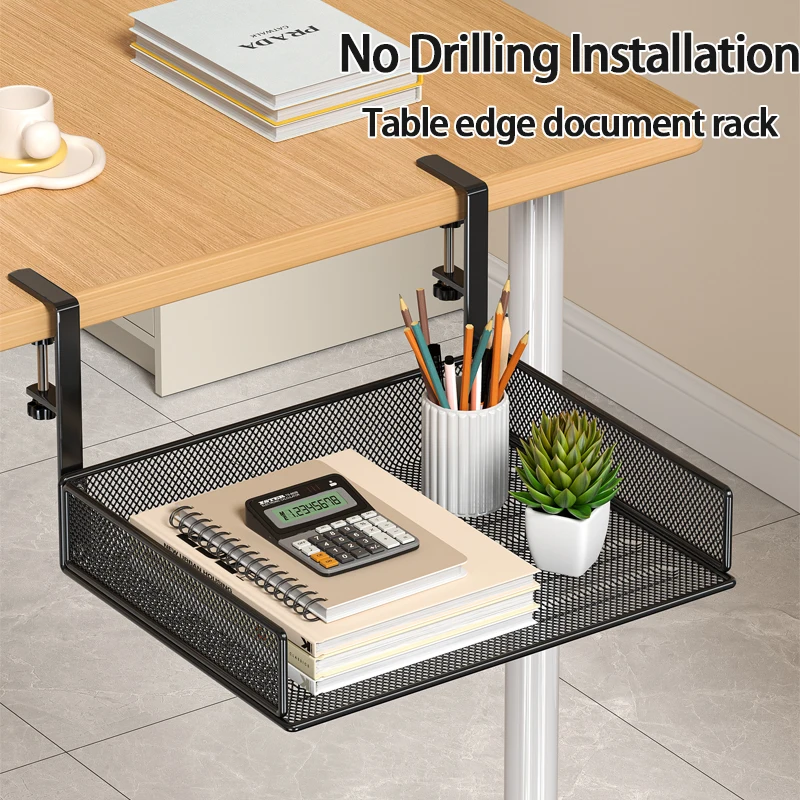
Clamp-On Under-Desk Drawer — Mesh Metal Organizer
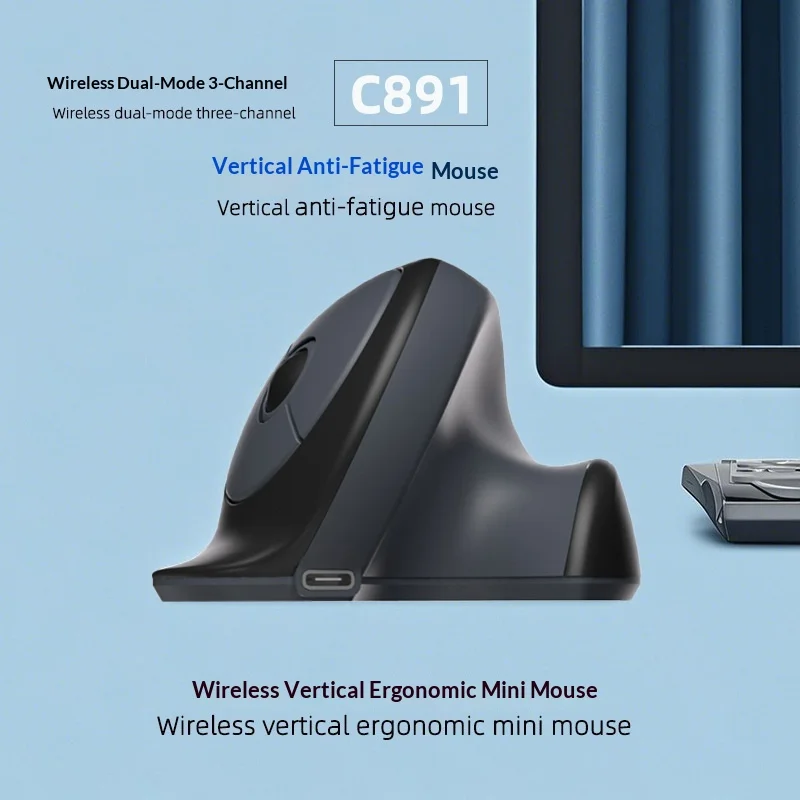
C891 Vertical Ergonomic Wireless Mouse — Dual-Mode Rechargeable
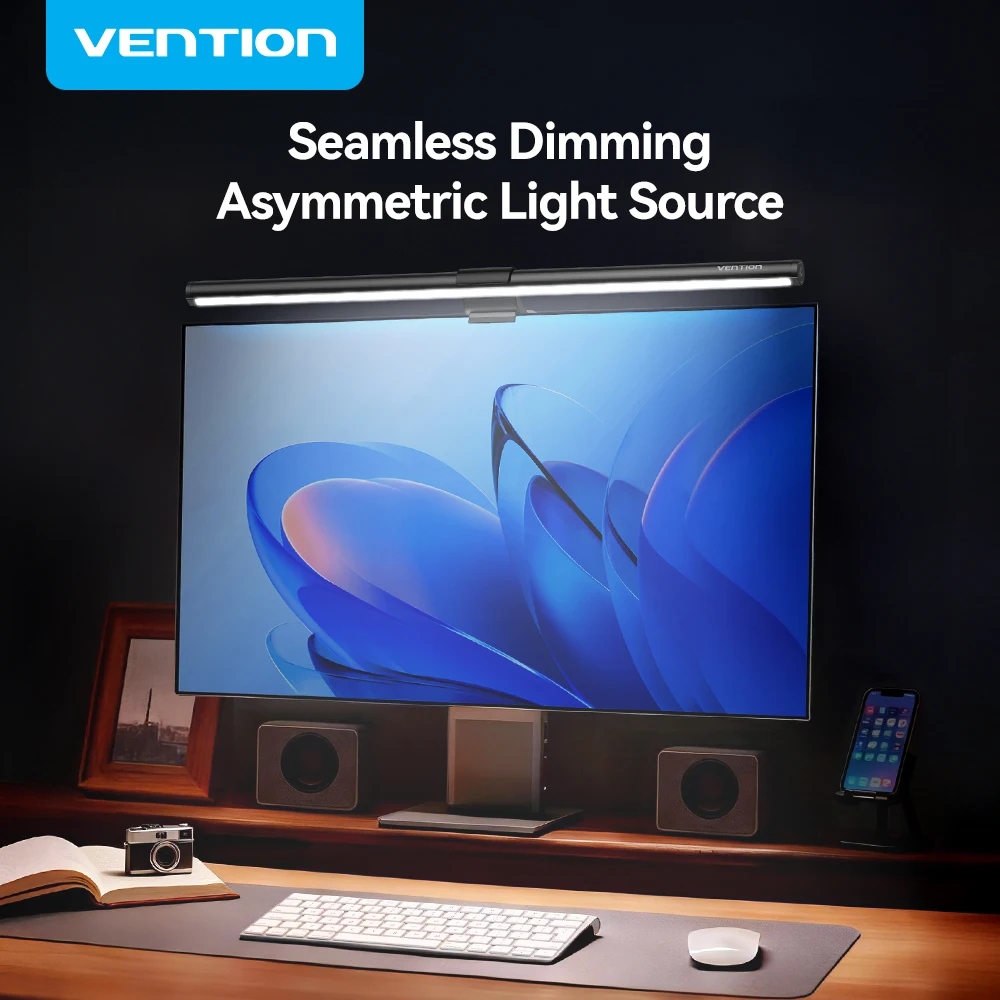
Vention Monitor Light Bar — LED Screen Hanging Lamp
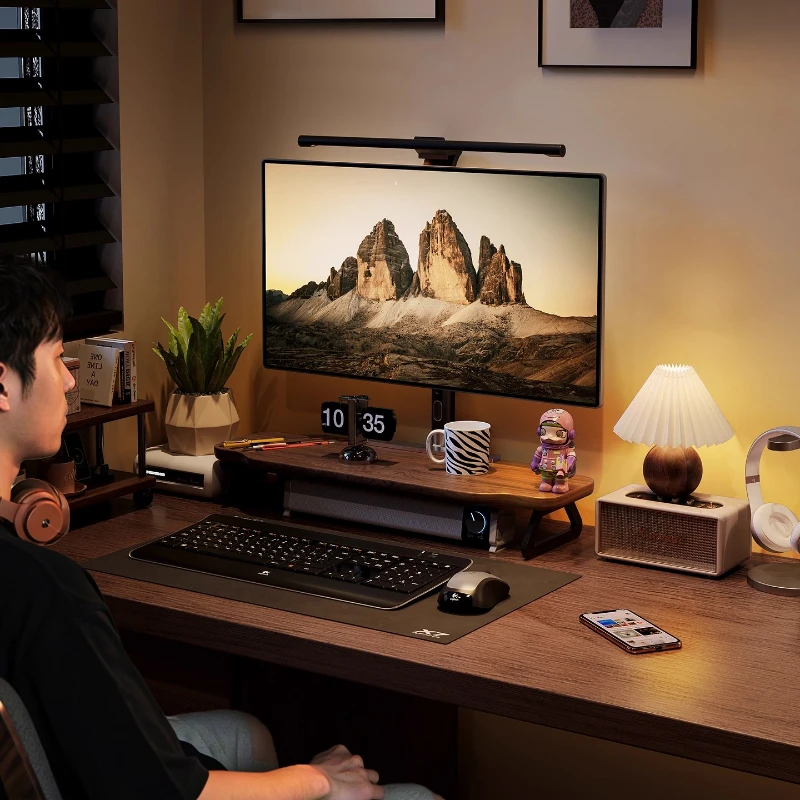
Walnut Wood Monitor Riser — Desk Stand with Keyboard Storage
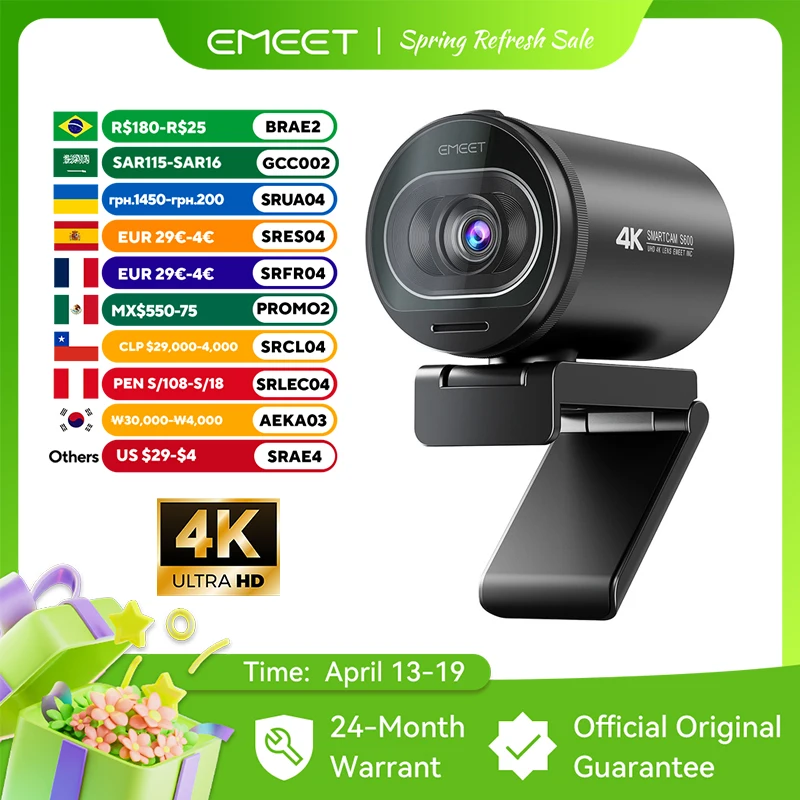
EMEET S6 4K Webcam - 1080P 60FPS Pro Streaming Camera