Ergonomic Home Office Setup: Complete Guide for Remote Workers
Working from home has become the new normal for millions of professionals, but many struggle with discomfort, fatigue, and decreased productivity due to poor workspace design. An ergonomic home office setup isn't just about comfort—it's about creating a workspace that supports your health, reduces strain, and maximizes your efficiency throughout the workday.
A proper ergonomic home office setup involves positioning your monitor at eye level, maintaining neutral wrist and spine positions, ensuring adequate lighting, and choosing equipment that supports natural body mechanics. The key is creating a workspace where your body can work comfortably for extended periods without developing pain or tension.
Key Takeaways:
- Monitor should be 20-26 inches away at eye level to prevent neck strain
- Keyboard and mouse positioning keeps wrists in neutral alignment
- Proper lighting reduces eye strain and improves focus
- Quality ergonomic accessories can transform any workspace
- Regular movement and posture breaks are essential for long-term health
What Makes an Ergonomic Home Office Setup Effective?
An effective ergonomic workspace is built on the principle of neutral body positioning. This means your joints should be in their most natural, unstressed positions while you work. Your head should be balanced over your shoulders, your shoulders relaxed, your elbows at roughly 90 degrees, and your feet flat on the floor.
The foundation starts with your chair and desk height. Your thighs should be parallel to the floor, with your feet resting comfortably. If your desk is too high or low, you'll compensate by hunching your shoulders or extending your wrists at awkward angles, leading to tension and discomfort over time.
Lighting plays a crucial role in ergonomics too. Poor lighting forces you to lean forward, squint, or crane your neck to see your screen clearly. This seemingly minor issue can cause significant strain over an eight-hour workday.
Essential Monitor and Screen Positioning for Comfort
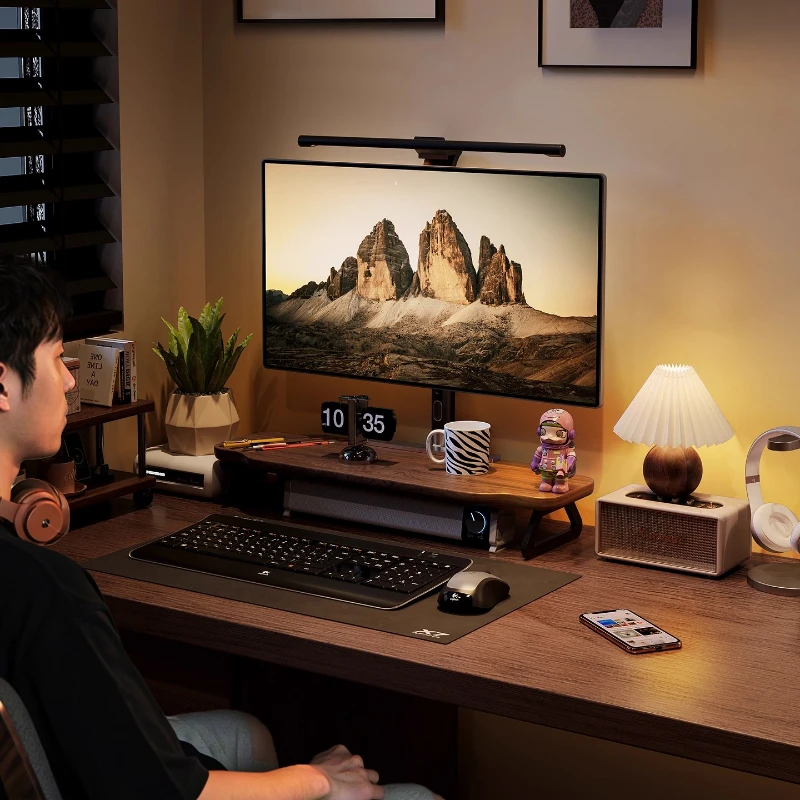
Your monitor setup is perhaps the most critical element of your ergonomic home office setup. The top of your screen should be at or slightly below eye level, allowing you to look straight ahead or slightly downward at the center of the screen. This positioning prevents the forward head posture that causes neck pain and headaches.
Position your monitor 20-26 inches away from your eyes—roughly an arm's length. If you find yourself leaning forward to read text, increase your font size rather than moving closer. For dual monitor setups, place your primary monitor directly in front of you and the secondary monitor at the same height and distance.
A height-adjustable monitor stand can be invaluable for achieving the perfect screen position, especially if you're working with a laptop or a monitor that doesn't have sufficient built-in height adjustment.
Consider the angle of your screen as well. A slight backward tilt of 10-20 degrees can reduce glare and provide a more comfortable viewing angle, especially for taller individuals.
Keyboard and Mouse Ergonomics for Healthy Wrists
Proper keyboard and mouse positioning is essential for preventing repetitive strain injuries. Your keyboard should be positioned so your elbows hang naturally at your sides with your forearms roughly parallel to the floor. Your wrists should remain straight and neutral—not bent up, down, or to either side.
Many people benefit from a keyboard tray that allows for precise height and angle adjustment. If you're using a laptop, consider an external keyboard to achieve proper positioning while maintaining optimal screen height.
For mechanical keyboard enthusiasts, options like the AULA F75 Max wireless mechanical keyboard or the compact Apayado K61 mini mechanical keyboard can provide excellent typing feel while maintaining ergonomic principles.
Mouse positioning is equally important. Your mouse should be at the same height as your keyboard and close enough that you don't have to reach for it. An ergonomic wireless mouse with proper palm support can significantly reduce wrist strain during extended use.
Lighting Solutions to Reduce Eye Strain
Proper lighting is often overlooked in home office setups, yet it's crucial for maintaining comfort and productivity. The goal is to minimize contrast between your screen and surrounding environment while providing adequate illumination for any paperwork or secondary tasks.
Natural light is ideal, but it needs to be managed carefully. Position your monitor perpendicular to windows to avoid glare and harsh shadows. If you face a window, use blinds or curtains to control brightness throughout the day.
For artificial lighting, avoid overhead lights that create glare on your screen. Instead, use task lighting that illuminates your workspace evenly. An adjustable LED desk lamp provides focused lighting that you can direct away from your screen while still illuminating your keyboard and documents.
The key is having multiple light sources at different intensities. This creates even illumination without harsh shadows or bright spots that force your eyes to constantly adjust.
Cable Management and Workspace Organization
A cluttered workspace isn't just visually distracting—it can impact your physical comfort and workflow efficiency. Proper cable management prevents tripping hazards and allows you to position equipment optimally without being constrained by cord length or tangled cables.
Under-desk cable management solutions keep your workspace clean and safe. Options like a telescopic under-desk cable tray or premium retractable cable tray can accommodate various desk sizes while keeping power cables, USB cords, and other connections organized and accessible.
Consider your connectivity needs as well. A quality USB-C docking station can reduce cable clutter while providing all the ports you need for external monitors, peripherals, and charging.
Creating Zones for Different Activities
Organize your desk into functional zones: a primary work area directly in front of you, a secondary area for reference materials, and storage areas for supplies you use less frequently. This organization reduces reaching and twisting, keeping your body in better alignment throughout the day.
Technology and Accessories for Enhanced Comfort
Modern remote work often requires video calls and virtual meetings, making camera and audio quality important considerations. A high-quality webcam positioned at eye level reduces the need to look down at your laptop screen during calls, maintaining better posture.
Options like the eMeet S6 4K streaming webcam or a 4K webcam with autofocus provide professional video quality while allowing you to maintain proper ergonomic positioning during virtual meetings.
Temperature control is another often-overlooked factor. Your workspace should be comfortable enough that you're not hunching up due to cold or slouching due to heat. Good ventilation and appropriate clothing for your environment help maintain the relaxed posture that ergonomic principles require.
The Importance of Movement and Breaks
Even the most perfectly designed ergonomic home office setup can't replace the need for regular movement. The human body isn't designed to remain in any single position for hours at a time. Set reminders to stand, stretch, and move every 30-60 minutes.
Consider incorporating standing work periods into your day, even if it's just for phone calls or reviewing documents. The key is variation—changing positions regularly prevents the muscle fatigue and joint stiffness that comes from static postures.
Common Ergonomic Mistakes to Avoid
Many remote workers unknowingly sabotage their comfort by making common setup mistakes. Using a laptop screen as your primary monitor forces you to look down, creating neck strain. Working from a couch or bed might seem comfortable initially, but lacks the support needed for extended work sessions.
Another frequent error is positioning equipment based on available space rather than ergonomic principles. Your monitor might fit perfectly in a corner, but if it requires you to twist your neck to see it, you'll develop problems over time.
Ignoring lighting is equally problematic. Working in dim conditions or with harsh glare forces your eyes to work harder and can cause you to unconsciously lean forward or squint, disrupting your carefully planned posture.
Budget-Conscious Ergonomic Improvements
Creating an ergonomic workspace doesn't require expensive furniture. Simple adjustments like using books to raise your monitor, a rolled towel for lumbar support, or a footrest made from a box can make significant improvements to your comfort.
Focus on the fundamentals first: proper monitor height, keyboard positioning, and lighting. These elements have the greatest impact on your daily comfort and can often be addressed with minimal investment.
Transform Your Home Office Today
Creating an ergonomic home office setup is an investment in your long-term health, comfort, and productivity. The principles outlined here—proper positioning, adequate lighting, quality equipment, and regular movement—work together to create a workspace that supports rather than strains your body.
Remember that ergonomics is personal. What works perfectly for one person might need adjustment for another based on height, arm length, and individual preferences. Start with the basic principles and fine-tune your setup based on how your body responds.
Ready to upgrade your workspace? Explore our complete collection of ergonomic office essentials designed to help you create the perfect work-from-home environment. From adjustable accessories to premium peripherals, we have everything you need to transform your home office into a comfortable, productive space.
Shop products from this guide
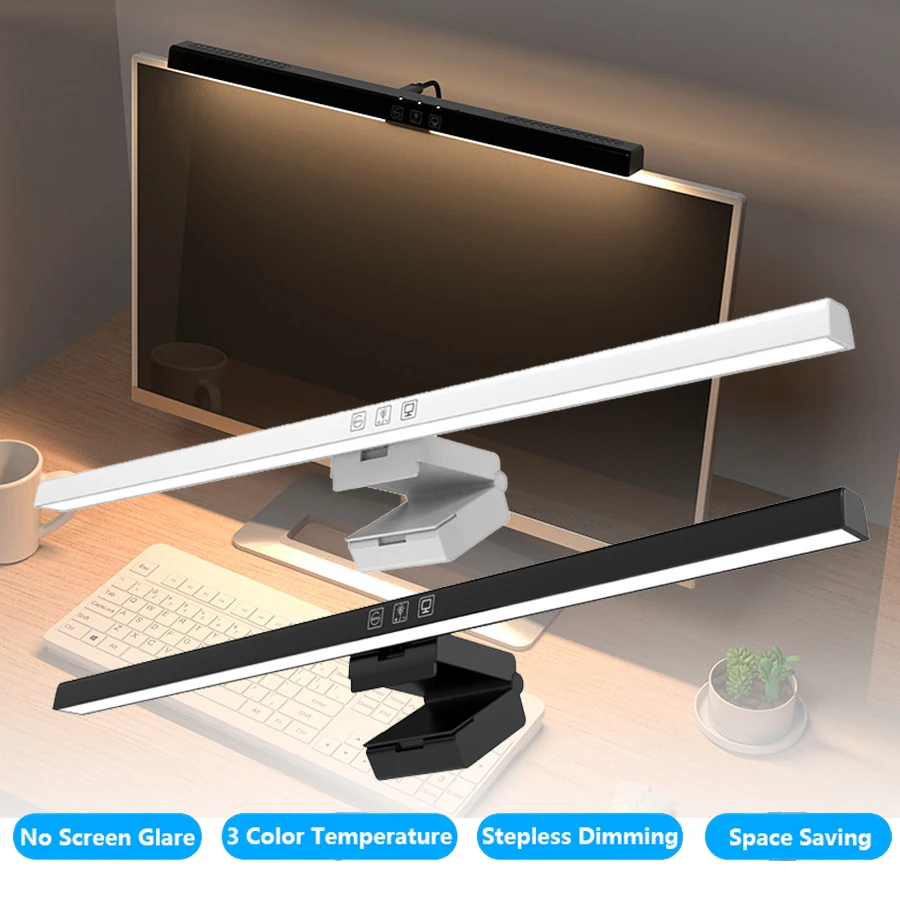
Monitor Light Bar — 50cm LED Screen Hanging Lamp
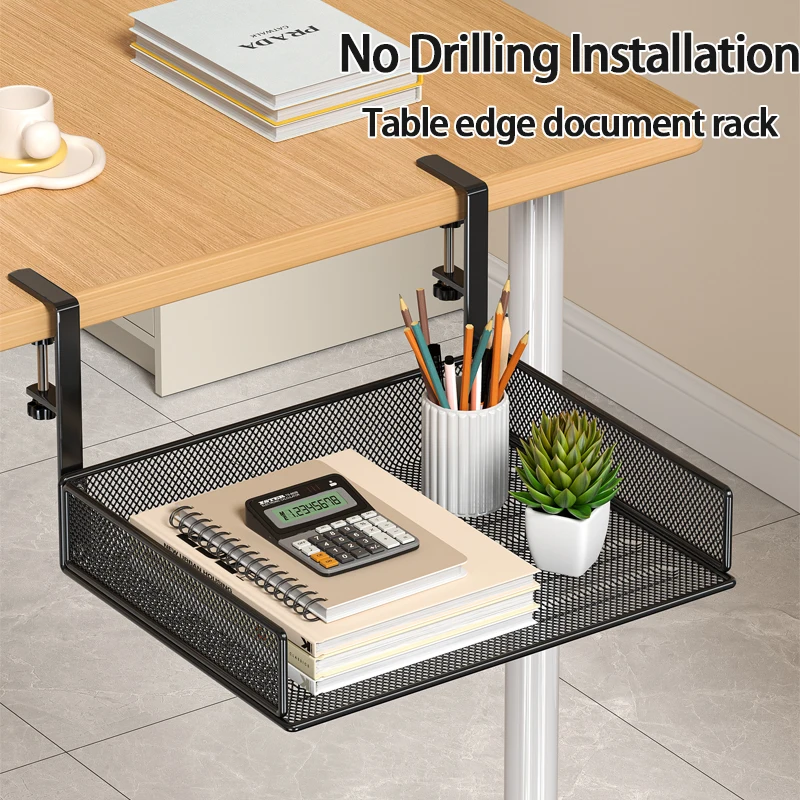
Clamp-On Under-Desk Drawer — Mesh Metal Organizer
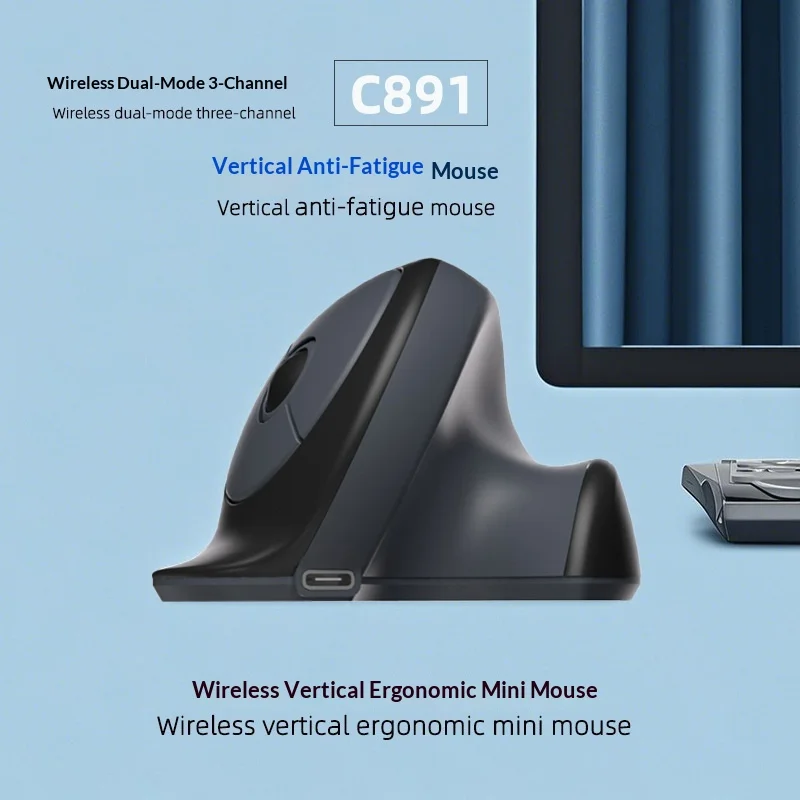
C891 Vertical Ergonomic Wireless Mouse — Dual-Mode Rechargeable
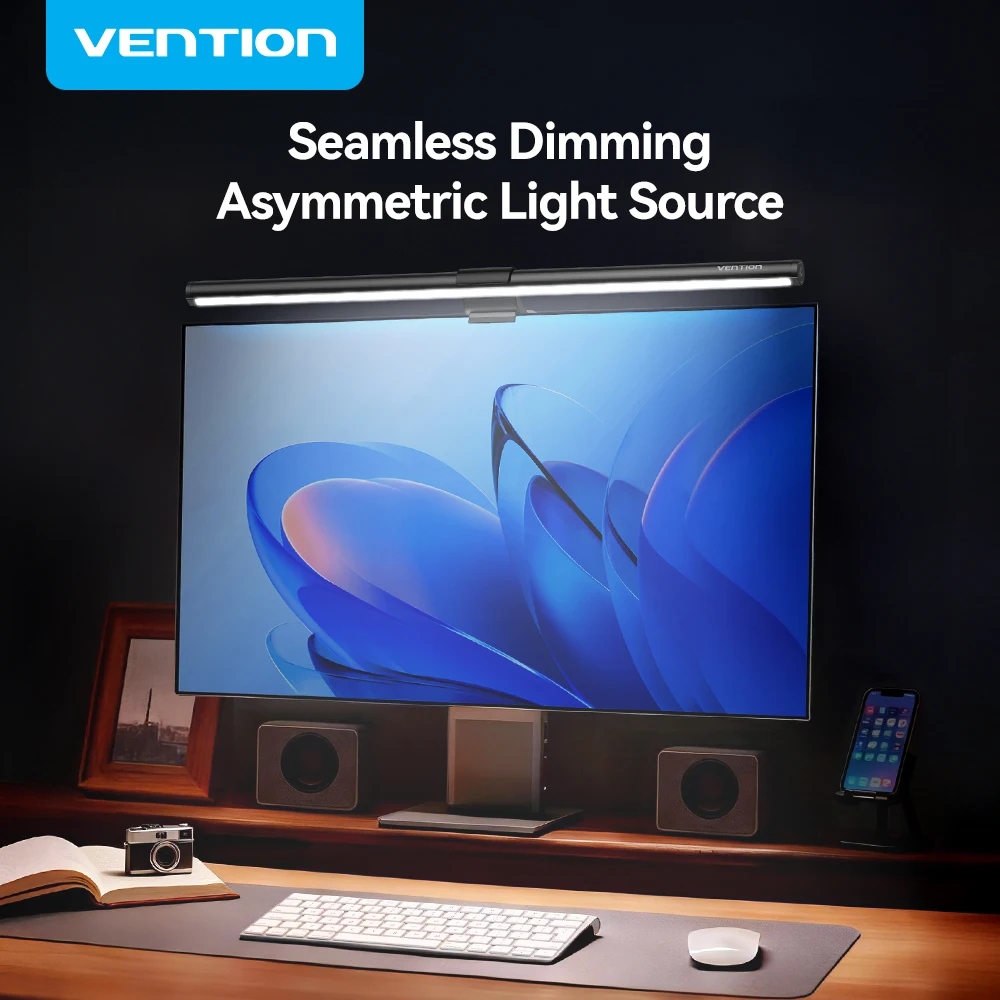
Vention Monitor Light Bar — LED Screen Hanging Lamp
Walnut Wood Monitor Riser — Desk Stand with Keyboard Storage