How to Reduce Eye Strain When Working from Home: 9 Proven Methods
Working from home has transformed how millions of people approach their daily work routine, but it's also introduced new challenges for our eye health. Extended screen time, poor lighting conditions, and makeshift workspaces can lead to digital eye strain, affecting productivity and overall well-being.
The most effective ways to reduce eye strain when working from home include following the 20-20-20 rule, optimizing your workspace lighting, positioning your monitor correctly, and using ergonomic equipment. These evidence-based methods can significantly decrease eye fatigue, headaches, and vision problems associated with prolonged computer use.
Key Takeaways:
- Follow the 20-20-20 rule: every 20 minutes, look at something 20 feet away for 20 seconds
- Position your monitor 20-26 inches away with the top at or below eye level
- Use proper lighting with minimal glare and adequate brightness
- Invest in ergonomic equipment like adjustable monitor stands and quality desk lamps
- Take regular breaks and maintain good posture throughout the day
What Causes Eye Strain During Remote Work?
Digital eye strain, also known as Computer Vision Syndrome (CVS), affects up to 90% of people who spend three or more hours daily in front of screens. When working from home, several factors contribute to increased eye strain:
Prolonged screen exposure reduces our natural blink rate from 15-20 blinks per minute to just 5-7 blinks, leading to dry eyes and irritation. Poor lighting conditions in home offices often create harsh contrasts between bright screens and dim surroundings, forcing eyes to constantly readjust.
Improper monitor positioning is another major culprit. Many home workers use laptops on kitchen tables or work from couches, creating awkward viewing angles that strain neck muscles and eyes. Additionally, blue light emission from screens can disrupt sleep patterns and contribute to eye fatigue over time.
Essential Lighting Solutions for Computer Eye Strain
Proper lighting is crucial for reducing eye strain during long work sessions. The key is creating balanced illumination that minimizes glare while providing adequate brightness for comfortable viewing.
Ambient lighting should be approximately half as bright as your screen. Avoid working in complete darkness with only your monitor providing light, as this creates harsh contrast that strains your eyes. Instead, use soft, indirect lighting sources positioned behind or to the side of your workspace.
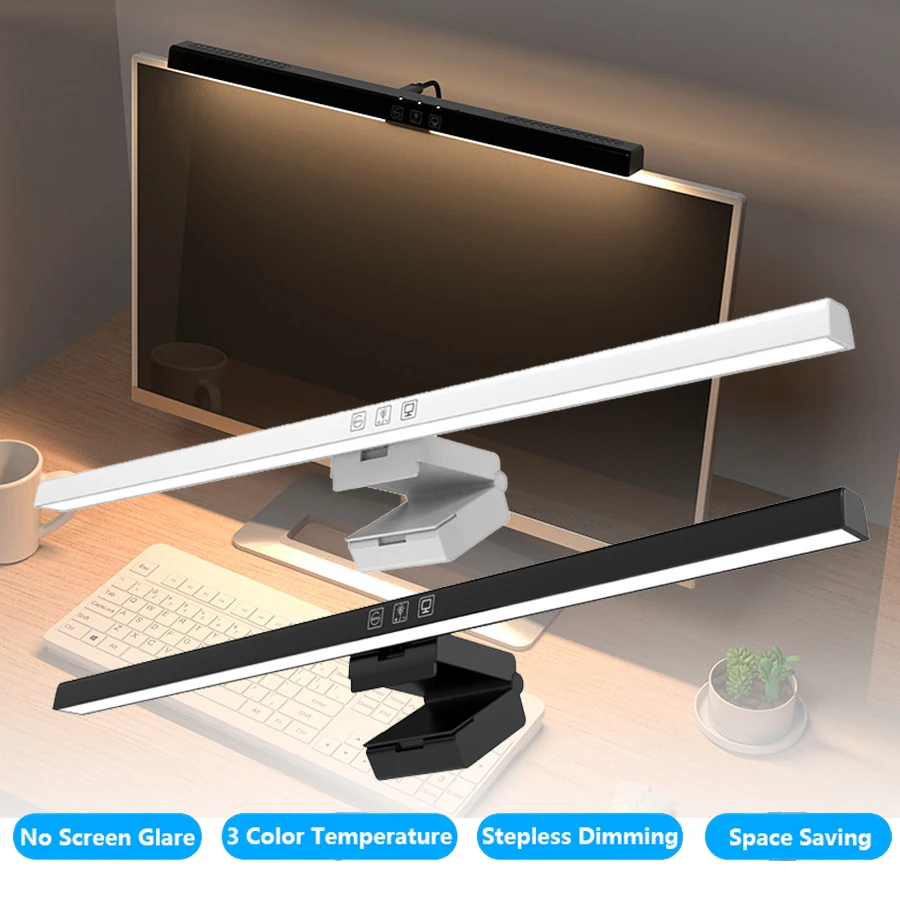
A high-quality adjustable desk lamp with dimmable LED lighting can provide targeted illumination for documents while reducing overall eye strain. Look for lamps with adjustable color temperature settings that allow you to match the lighting to your screen's warmth throughout the day.
Window positioning matters significantly. Place your monitor perpendicular to windows rather than directly in front of or behind them. This prevents glare from natural light and reduces the need for your eyes to constantly adjust between bright outdoor light and your screen.
Optimal Monitor Setup and Screen Positioning
Proper monitor positioning is fundamental to preventing eye strain and maintaining good posture during remote work. The ideal setup follows specific ergonomic guidelines that reduce stress on both your eyes and neck.
Distance and height are critical factors. Position your monitor 20-26 inches away from your eyes—roughly an arm's length. The top of your screen should be at or slightly below eye level, allowing you to look slightly downward at the center of the screen. This natural downward gaze reduces eye strain and prevents neck tension.
For laptop users, this often means investing in an adjustable monitor stand or laptop riser to achieve proper height. Using an external keyboard and mouse with a raised laptop screen creates a more ergonomic setup that significantly reduces eye and neck strain.
Screen angle and tilt should position the monitor perpendicular to your line of sight, with a slight backward tilt of 10-20 degrees. This angle helps reduce glare from overhead lighting and maintains comfortable viewing without straining your neck.
Multiple monitor considerations require careful planning. If using dual monitors, position them at equal distances and heights, with minimal gaps between screens. The primary monitor should be directly in front of you, with the secondary monitor angled slightly inward.
The 20-20-20 Rule and Regular Break Strategies
The 20-20-20 rule is one of the most effective methods for preventing digital eye strain. This simple technique involves taking a 20-second break every 20 minutes to look at something at least 20 feet away.
Why it works: Focusing on distant objects relaxes the ciliary muscles in your eyes, which become tense from prolonged near-focus work. This brief relaxation period helps prevent muscle fatigue and reduces the risk of developing focusing problems.
Implementation strategies include setting phone alarms, using computer break reminder software, or incorporating the rule into natural work transitions. Many productivity apps now include eye break reminders as standard features.
Extended break benefits go beyond the basic 20-20-20 rule. Consider taking longer 5-10 minute breaks every hour to stand, stretch, and give your eyes a more substantial rest. During these breaks, avoid looking at phones or other screens—instead, focus on distant objects or close your eyes completely.
Blinking exercises can be incorporated into break routines. Conscious blinking helps redistribute tears across the eye surface, preventing dryness and irritation. Try deliberately blinking 10-15 times slowly during each break period.
Screen Settings and Blue Light Management
Optimizing your screen settings can dramatically reduce eye strain without requiring additional equipment. Modern displays offer numerous adjustment options that can be customized for comfortable viewing.
Brightness adjustment should match your surrounding environment. A screen that's too bright in a dim room or too dark in a well-lit space forces your eyes to work harder. Use your display's auto-brightness feature or manually adjust brightness throughout the day as lighting conditions change.
Contrast and text size optimization improves readability and reduces eye strain. Increase text size rather than leaning closer to your screen, and adjust contrast settings to ensure clear distinction between text and background colors. Dark mode interfaces can be easier on the eyes in low-light conditions.
Blue light filtering has gained attention for its potential impact on eye comfort and sleep quality. While research on blue light's direct effect on eye strain is mixed, many users report improved comfort when using blue light filters, especially during evening work sessions.
Refresh rate considerations matter for eye comfort. Higher refresh rates (75Hz or above) can reduce screen flicker that contributes to eye strain, particularly on older monitors. If you experience headaches or eye fatigue, check if your monitor supports higher refresh rates.
Ergonomic Equipment for Better Eye Health
Investing in ergonomic equipment creates a workspace that naturally promotes better eye health and reduces strain during long work sessions. The right tools can make a significant difference in daily comfort and long-term eye health.
Ergonomic keyboards and mice contribute to overall posture, which directly affects eye strain. Poor posture can lead to neck tension that impacts how comfortably you can view your screen. A quality ergonomic mouse and properly positioned keyboard help maintain neutral wrist and arm positions, supporting better overall posture.
Monitor arms and stands provide precise positioning control that fixed monitor bases cannot offer. Adjustable stands allow you to fine-tune height, distance, and angle throughout the day, accommodating different tasks and preventing the gradual posture drift that often occurs during long work sessions.
Document holders position reference materials at the same distance and height as your screen, reducing the need to constantly refocus between different viewing distances. This simple addition can significantly reduce eye strain for tasks requiring frequent reference to printed materials.
Cable management solutions like under-desk cable trays create cleaner workspaces that reduce visual distractions and make it easier to maintain proper monitor positioning without cable interference.
Environmental Factors and Air Quality
The physical environment of your home office plays a crucial role in eye comfort and strain prevention. Often overlooked factors like air quality, humidity, and temperature can significantly impact eye health during extended work sessions.
Humidity levels between 40-60% help maintain comfortable eye moisture. Dry air, common in heated or air-conditioned spaces, can exacerbate eye dryness and irritation. Consider using a humidifier during dry seasons or in climate-controlled environments.
Air circulation prevents stagnant air that can carry dust and allergens, both of which can irritate eyes during long work sessions. Position fans or ensure good ventilation to maintain fresh air circulation without creating direct airflow that could dry out your eyes.
Temperature control affects comfort and concentration. Overly warm environments can cause drowsiness and eye fatigue, while cold conditions may cause eyes to water or feel uncomfortable. Maintain temperatures between 68-72°F for optimal comfort.
Allergen management includes regular cleaning of your workspace, using air purifiers if necessary, and keeping plants that might trigger allergies away from your immediate work area. Dust buildup on monitors can also reduce screen clarity and force you to strain to see clearly.
Nutrition and Hydration for Eye Health
Supporting eye health through proper nutrition and hydration provides internal defense against digital eye strain. While environmental and ergonomic factors are crucial, what you consume throughout the workday also impacts eye comfort and function.
Hydration maintenance is essential for tear production and overall eye comfort. Dehydration can reduce tear quality and quantity, leading to dry, irritated eyes. Aim for consistent water intake throughout the day rather than large amounts at once.
Eye-healthy nutrients include omega-3 fatty acids, vitamin A, vitamin C, and antioxidants like lutein and zeaxanthin. These nutrients support retinal health and may help protect against digital eye strain. Include foods like leafy greens, fish, nuts, and colorful fruits in your work-from-home meal planning.
Caffeine considerations can affect eye comfort. While moderate caffeine intake is generally fine, excessive consumption can contribute to eye twitching and may exacerbate dry eye symptoms in some individuals. Monitor your response to caffeine and adjust intake if you notice increased eye discomfort.
When to Seek Professional Help
While most cases of digital eye strain can be managed through proper workspace setup and habits, certain symptoms warrant professional evaluation. Recognizing when self-care measures aren't sufficient can prevent more serious vision problems.
Persistent symptoms that continue despite implementing proper eye strain prevention measures may indicate underlying vision problems. If headaches, eye pain, or vision changes persist after improving your workspace ergonomics, consult an eye care professional.
Vision changes including blurred vision that doesn't resolve with breaks, double vision, or difficulty focusing should be evaluated promptly. These symptoms may indicate refractive errors that can be corrected with prescription glasses or contact lenses.
Severe dry eye symptoms that don't respond to environmental improvements or over-the-counter artificial tears may require prescription treatments. An eye doctor can evaluate tear production and quality to determine appropriate treatments.
Regular eye exams become more important for frequent computer users. Annual comprehensive eye exams can detect vision changes early and ensure your prescription is current, reducing unnecessary eye strain from outdated corrective lenses.
Transform Your Home Office for Better Eye Health
Learning how to reduce eye strain working from home requires a comprehensive approach that addresses lighting, ergonomics, work habits, and environmental factors. By implementing these nine proven methods, you can create a workspace that supports both productivity and long-term eye health.
The key to success lies in consistency and gradual implementation. Start with the most impactful changes—proper monitor positioning and lighting—then gradually incorporate additional strategies like the 20-20-20 rule and ergonomic equipment upgrades.
Ready to upgrade your home office setup? Explore our complete collection of ergonomic desk accessories and professional workspace solutions designed to reduce eye strain and enhance your work-from-home experience. From adjustable monitor stands to premium desk lighting, we have everything you need to create a healthier, more comfortable workspace.
Shop products from this guide
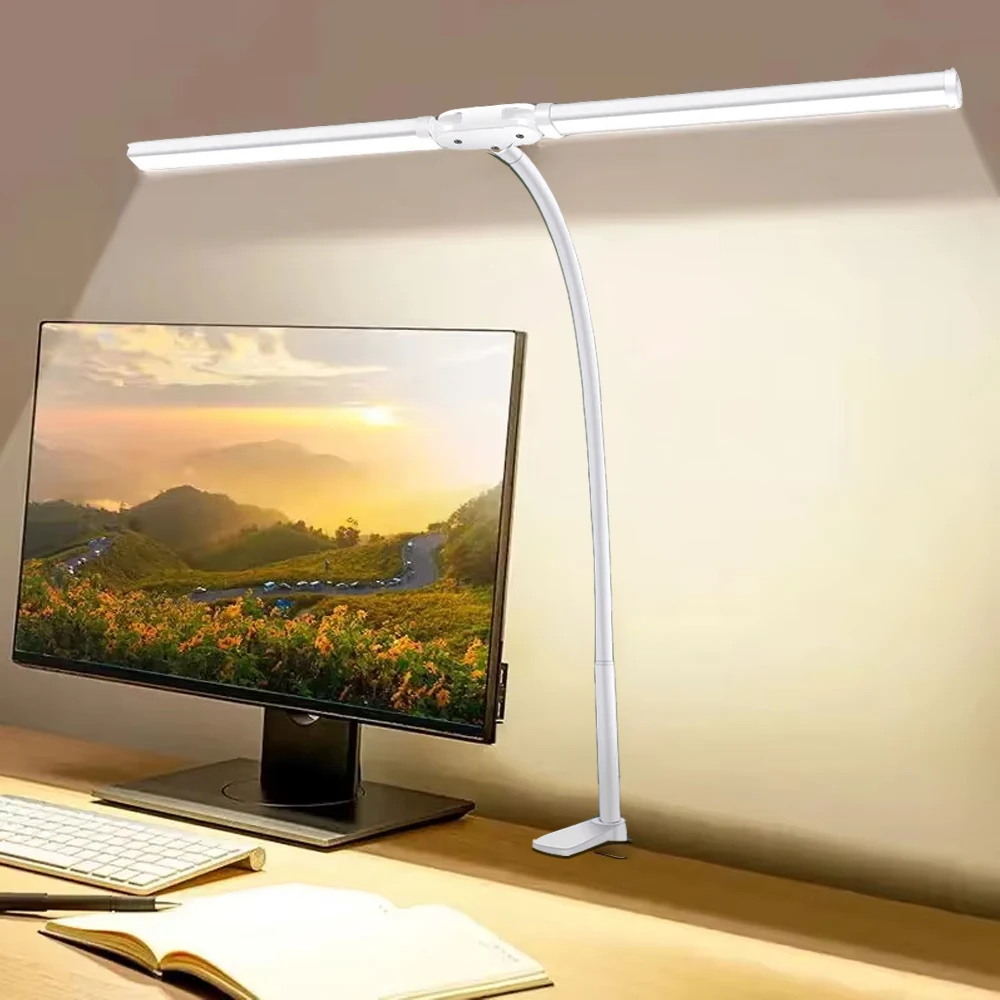
DeskCraft LED Architect Desk Lamp - Dual Head Dimmable

DeskCraft Monitor Stand Riser - Adjustable Wood Desk Organizer
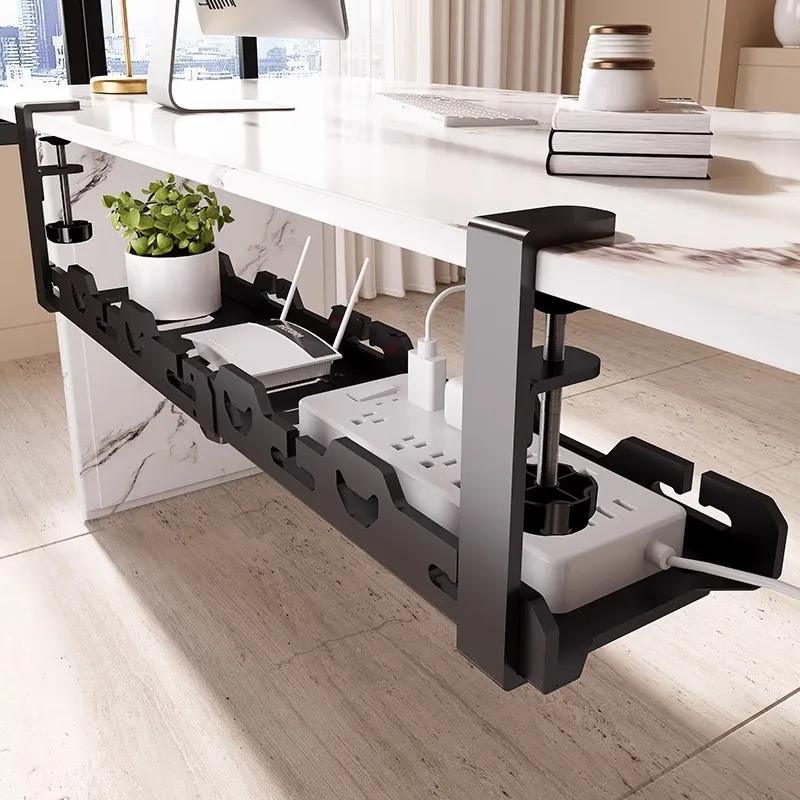
DeskCraft Telescopic Under-Desk Cable Management Tray

Premium Under-Desk Cable Tray | Retractable 15-31"
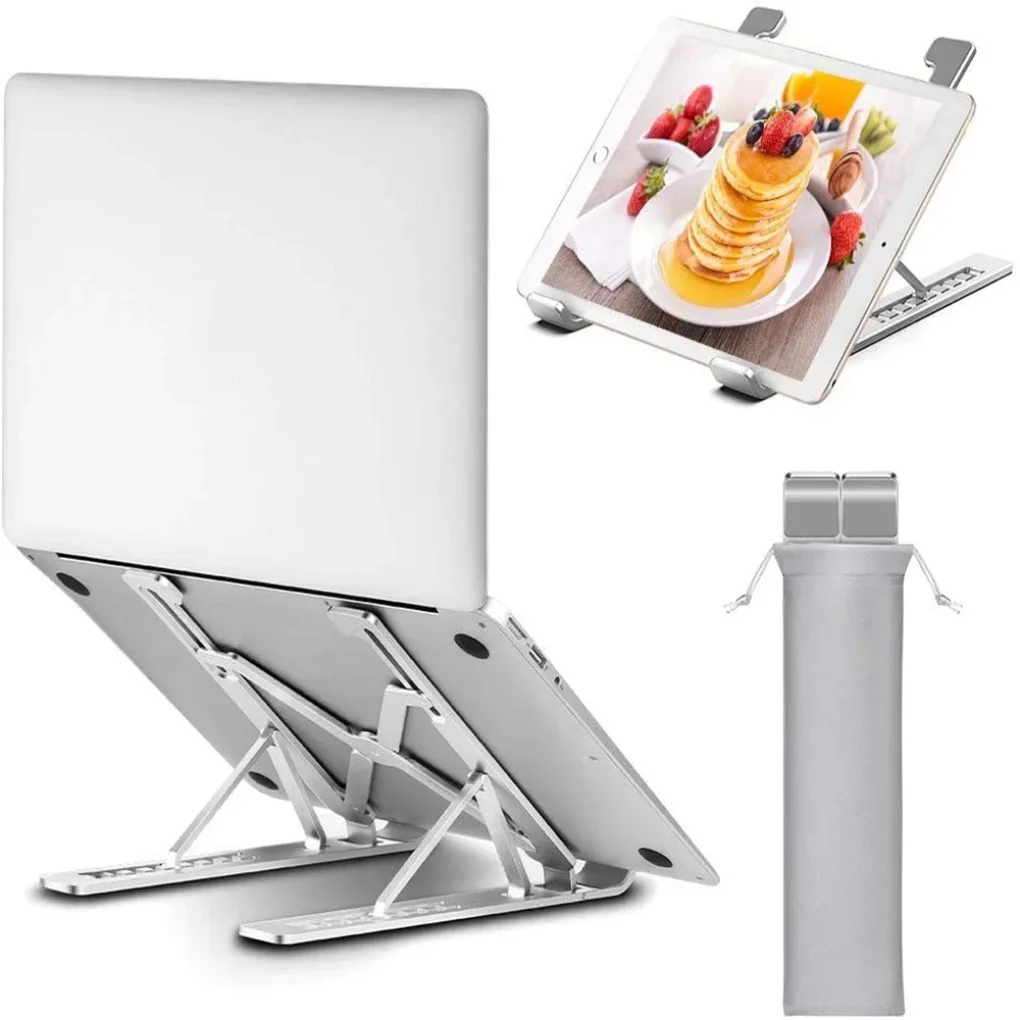
Ergonomic Adjustable Laptop Stand — Aluminum Desk Riser