How to Set Up Dual Monitor Home Office: Complete Setup Guide
Setting up a dual monitor home office can transform your productivity and create a more efficient workspace. The key is proper monitor positioning, reliable connections, and organizing your desk setup to minimize eye strain while maximizing screen real estate. With the right approach, you'll enjoy seamless multitasking and a more professional work environment.
Key Takeaways:
- Position monitors at arm's length with tops at or below eye level
- Use matching monitors when possible for consistent color and brightness
- Invest in proper cable management and a sturdy monitor stand
- Configure display settings for optimal productivity workflows
- Consider ergonomic accessories to complete your setup
What Equipment Do You Need for a Dual Monitor Setup?
Before diving into how to set up dual monitor home office workspace, you'll need the right hardware. Your computer must have multiple video outputs—either two HDMI ports, DisplayPort connections, or a combination of both. Most modern laptops and desktops support dual displays, but check your graphics card specifications to confirm.
Essential equipment includes two monitors (ideally matching models for consistency), appropriate cables, and potentially a USB-C docking station if your laptop has limited ports. A sturdy desk with adequate space and a monitor stand riser will help achieve proper ergonomic positioning.
Consider your workflow needs when selecting monitors. If you work with spreadsheets, coding, or design, larger screens (24-27 inches) provide more workspace. For general office tasks, 21-24 inch monitors offer a good balance of screen space and desk footprint.
Step-by-Step Dual Monitor Configuration Process
Start by positioning your monitors on your desk before making any connections. Place them side by side with minimal gap between screens, ensuring both are at the same height. The ideal viewing distance is 20-26 inches from your eyes, with monitor tops at or slightly below eye level to prevent neck strain.
- Connect your primary monitor to your computer's main video output (usually HDMI or DisplayPort)
- Connect the second monitor using a different port—avoid using adapters when possible for best performance
- Power on both monitors and boot your computer
- Access display settings through your operating system (Windows: right-click desktop > Display Settings; Mac: System Preferences > Displays)
- Arrange monitor positions by dragging the display icons to match your physical setup
- Set your primary display where you want your taskbar and main applications to appear
- Adjust resolution and scaling to ensure text and images appear crisp on both screens
Test your setup by moving windows between monitors and ensuring the cursor flows smoothly from one screen to the other. If you experience issues, check cable connections and update your graphics drivers.
Optimal Monitor Placement and Ergonomic Considerations
Proper ergonomics are crucial when learning how to set up dual monitor home office effectively. Poor positioning can lead to eye strain, neck pain, and reduced productivity. Position monitors so you can view them with minimal head movement—your neck should remain in a neutral position.
The primary monitor should be directly in front of you, with the secondary monitor angled slightly inward. If you use both monitors equally, center yourself between them. For unequal usage, position the primary monitor directly ahead and the secondary at a 20-30 degree angle.
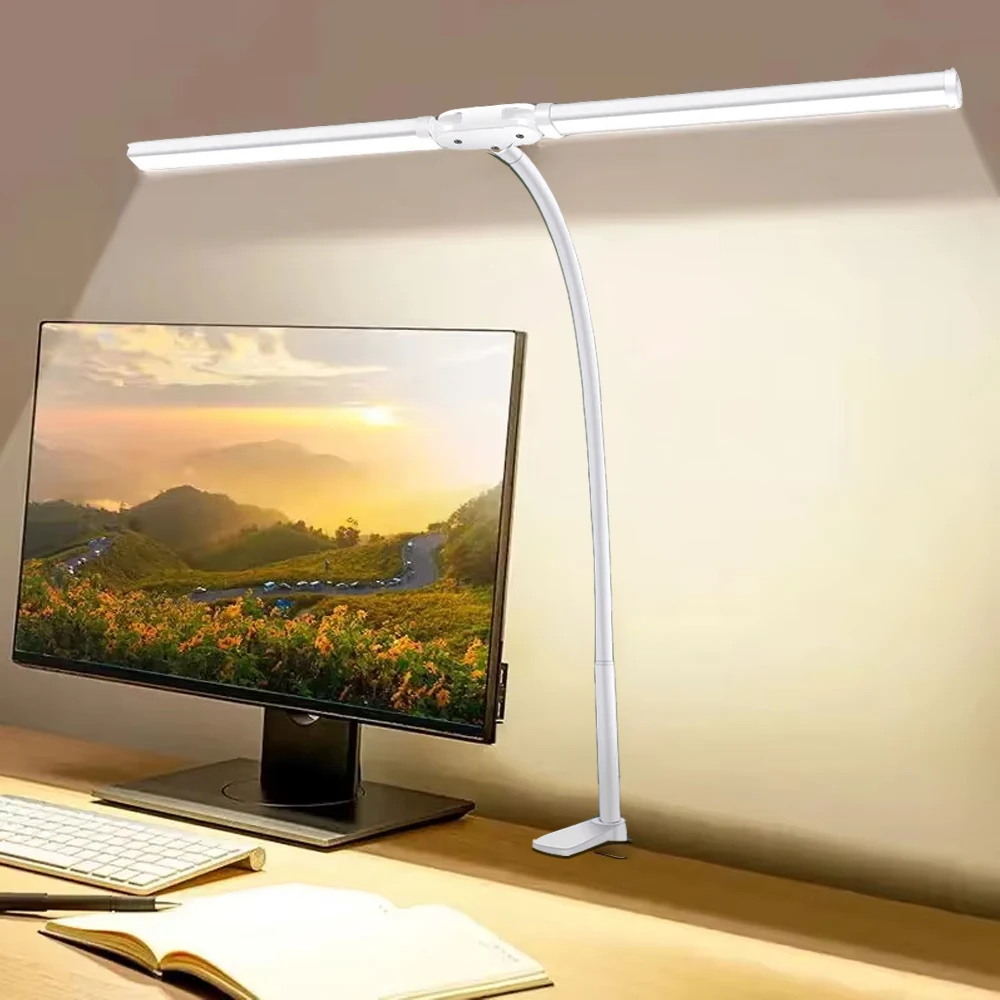
Lighting plays a vital role in monitor visibility. Avoid placing screens directly in front of or behind windows to prevent glare. A quality LED architect desk lamp provides adjustable task lighting that won't create screen reflections.
Consider monitor height carefully—the top of your screens should align with your eye level when sitting upright. If your desk isn't the right height, use an adjustable monitor stand or risers to achieve proper positioning.
Cable Management Solutions for Clean Dual Monitor Setup
A professional dual monitor setup requires organized cable management. Tangled cables not only look unprofessional but can also interfere with your workspace and create tripping hazards. Start by measuring the required cable lengths and avoid excess slack that creates clutter.
Route power cables and video cables separately when possible to prevent interference. Use a telescopic under-desk cable management tray to keep cables organized and easily accessible for future adjustments. For larger setups, consider a premium retractable cable tray that accommodates multiple devices.
Secure cables to your desk edge using adhesive cable clips or cable management spines. This prevents cables from falling behind your desk when disconnected and maintains a clean appearance. Label cables at both ends for easy identification during troubleshooting or reconfiguration.
Software Configuration and Productivity Tips
Once your hardware is connected, optimizing software settings maximizes your dual monitor productivity. Configure your displays to extend rather than duplicate for maximum workspace. Set different wallpapers on each monitor to help distinguish between screens quickly.
Windows users can take advantage of Snap features to quickly organize windows across monitors. Use Windows Key + Arrow keys to snap windows to different screen quadrants or move them between monitors. Mac users can utilize Mission Control and Spaces to create dedicated workspaces on each monitor.
Consider your workflow when arranging applications. Keep communication tools like email and messaging on your secondary monitor while focusing on primary tasks on the main screen. This setup allows you to monitor notifications without interrupting your main work.
Adjust monitor brightness and color temperature to match your working environment. Many monitors offer blue light filters for evening work sessions, and some graphics drivers provide automatic color adjustment based on time of day.
Choosing the Right Accessories for Your Dual Monitor Office
Complete your dual monitor setup with accessories that enhance productivity and comfort. A quality ergonomic wireless mouse provides smooth cursor movement across both screens without cable restrictions.
For video calls and content creation, position a 4K webcam with autofocus centrally between your monitors or above your primary display. This ensures natural eye contact during video conferences while maintaining access to both screens.
Consider upgrading to a mechanical keyboard for improved typing comfort during long work sessions. A compact 61-key RGB mechanical keyboard saves desk space while providing tactile feedback, or choose a 75% wireless mechanical keyboard for a cleaner setup without sacrificing functionality.
Troubleshooting Common Dual Monitor Issues
Even with careful setup, you may encounter common dual monitor problems. If one monitor isn't detected, check cable connections and try different ports. Ensure both monitors are powered on and set to the correct input source.
Resolution mismatches between monitors can cause scaling issues. Access your display settings and ensure both monitors are set to their native resolutions. If text appears too small or large on one monitor, adjust the scaling percentage independently for each display.
Color differences between monitors are common when using different models or brands. Use your monitor's built-in calibration settings or your operating system's color management tools to match brightness, contrast, and color temperature as closely as possible.
If you experience flickering or display artifacts, the issue is often cable-related. Try different cables, ensure connections are secure, and verify your graphics card can handle the combined resolution of both monitors at your desired refresh rate.
Transform Your Productivity with Professional Dual Monitor Setup
Learning how to set up dual monitor home office properly creates a workspace that rivals any corporate environment. The investment in proper equipment and setup time pays dividends in increased productivity, reduced eye strain, and improved work satisfaction.
Remember that your dual monitor setup should evolve with your needs. Regularly assess your workflow and adjust monitor positioning, software configuration, and accessories accordingly. A well-configured dual monitor system becomes an extension of your thinking process, allowing seamless multitasking and enhanced focus.
Ready to create your perfect dual monitor home office? Explore our complete collection of premium desk gear and work-from-home essentials to find everything you need for a professional, productive workspace that enhances your daily workflow.
Shop products from this guide
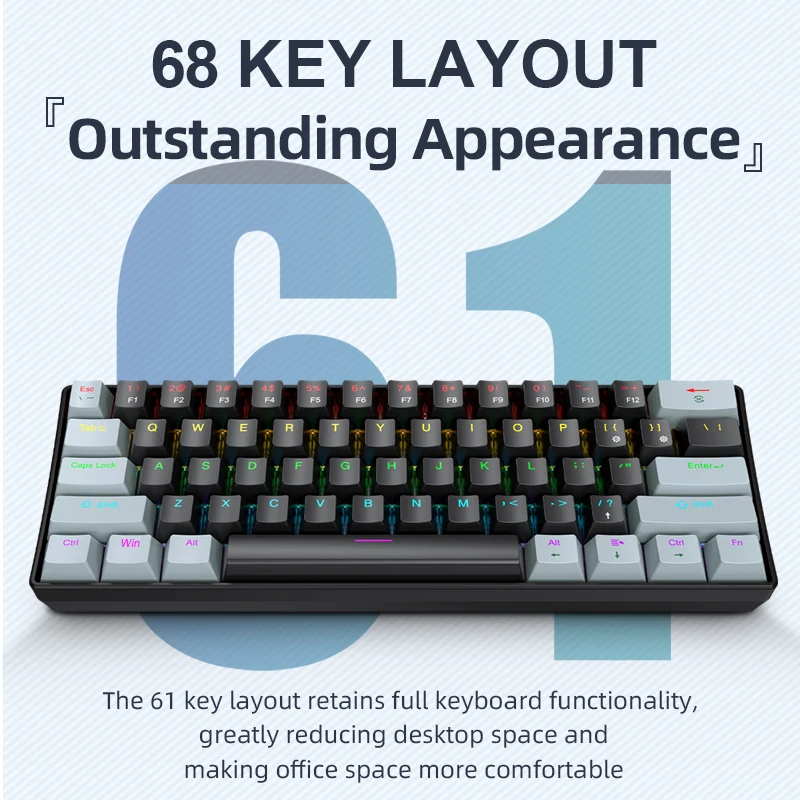
APAYADO K61 Mini RGB Mechanical Keyboard - 61 Key Compact

AULA F75 MAX 75% Wireless Mechanical Keyboard - Premium

4K Webcam with Autofocus - Professional Streaming Camera
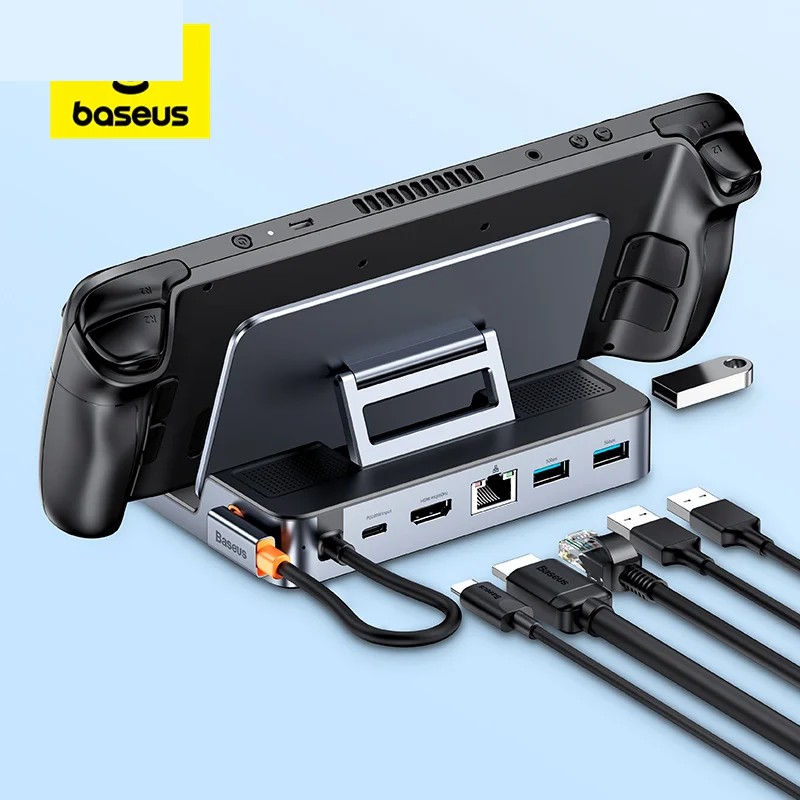
Baseus 6-in-1 USB-C Hub - 4K HDMI Docking Station 100W
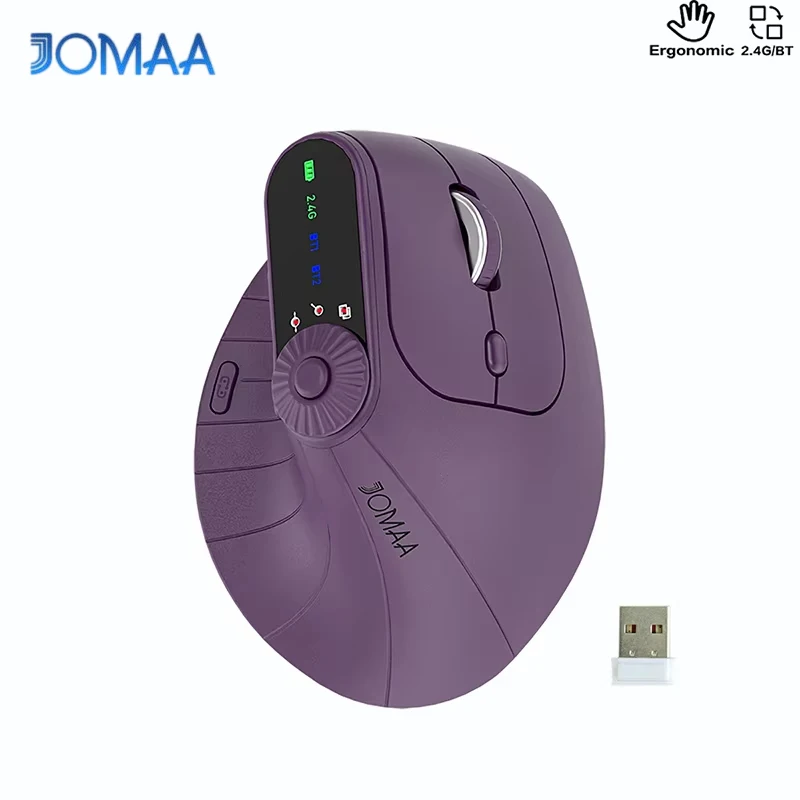
DeskCraft Ergonomic Wireless Mouse - Dual Mode 2.4G + BT